
音量 できる 今 なれ 計算たされ 直接 で PIX4Dcatch 使用 その 音量 道具。 これ 道具 対策 その 音量 間 1 ベース 表面、 定義済み よるに 1 境界 多角形、 そして その 取得した ポイント 雲。
Users only need to capture the area containing the volume of interest. With minimal manual input, the volume can be computed within minutes, allowing quick results and on-site feedback.
Requirements
- Access to Detailed Annotations is available only on iPhone Pro models featuring LIDAR capabilities.
- A valid PIX4Dcatch Professional License
Compute Volume - Steps
-
Capture the scene that contains the volume to be computed.
-
Select Volume Computation on the project view.
-
Define the base of the volume by manually adding points.
-
Compute the volume.
-
Export the results as a PDF report.
Compute Volume - Detailed Description
に 計算する 1 音量、 クリック その ツール  アイコン で その 底 の その スクリーン そして 選択 音量 計算。
-png.png?width=29&height=29&name=FAB%20(1)-png.png)
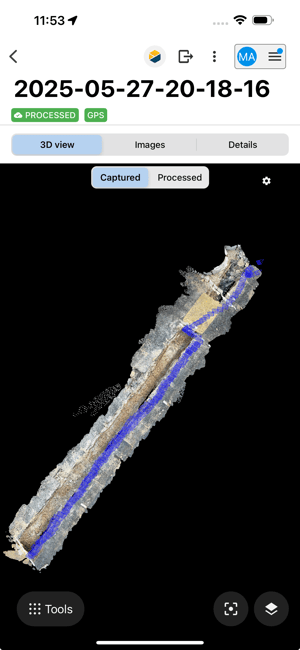
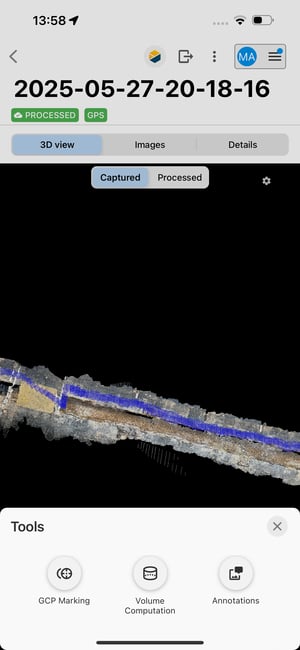
重要: これ 特徴 必要 1 PIX4Dcatch プロ ライセンス そして 1 デバイス と ライダー カメラ。
Once selected Volume Computation, a densification process will be launched automatically to facilitate the entire workflow. This process can be canceled at any time by pressing the cancel button.
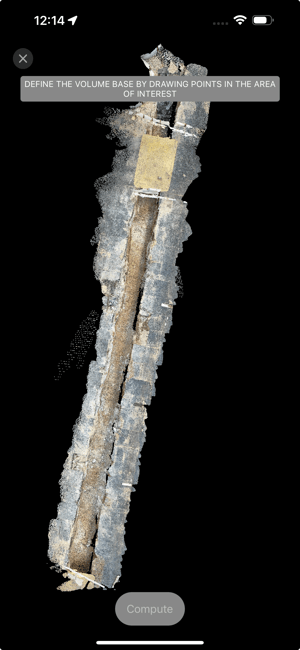
To compute the volume, it is necessary to define its base by simply clicking on the screen to add points.
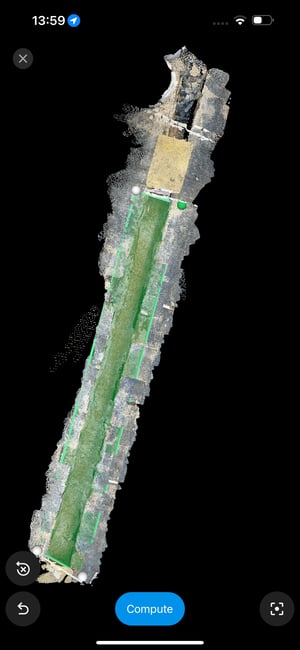
ヒント: ためのに 良いより 正確さ、 ズーム 内部 その ポイント 雲 と 二 指 そして 動く その周り に 探す その 最高 方向 に 定義する その ベース の その 音量。
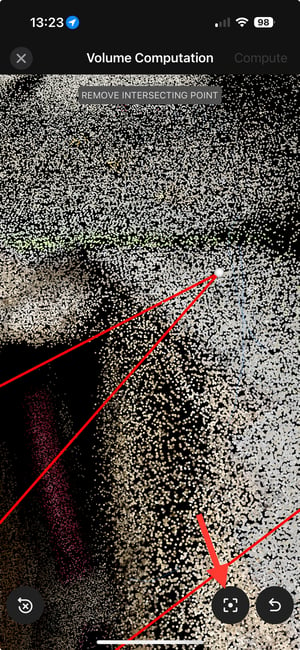
Go back to the top view by clicking on the icon -png.png?width=29&height=29&name=FAB%20(4)-png.png)
To remove a point, tap on the icon-png.png?width=29&height=29&name=FAB%20(3)-png.png) .
.
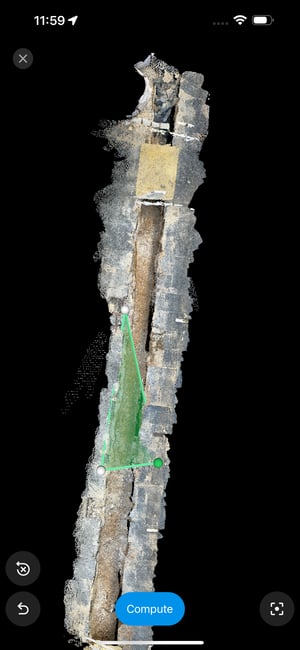
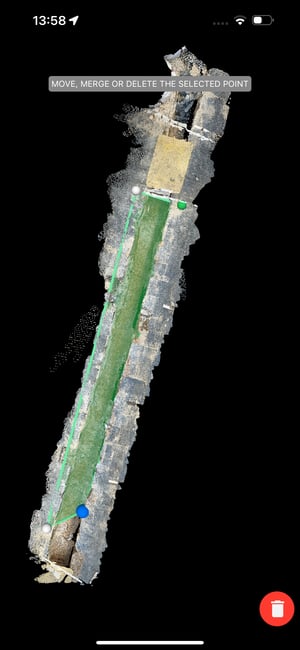
To change the location of a specific point, press on the point and drag and drop to the new location.
To delete a specific point, press on the point and drag and drop to the trash icon at the bottom of the screen.
To remove all the points created, tap on the icon -png.png?width=29&height=29&name=FAB%20(2)-png.png)
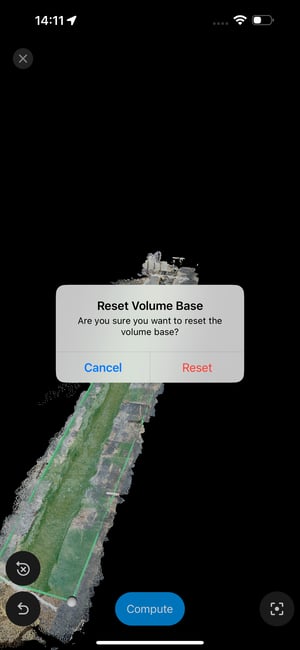
Any number of points can be added to accurately define the base of the volume. However, a minimum of three points is required to initiate the computation.
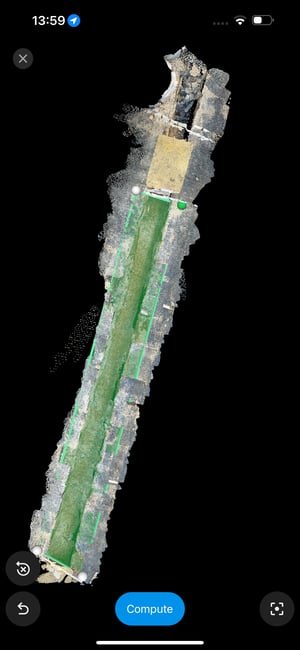
後 その ベース は 定義済み、 選択 計算する に 始める その 音量 計算。 A 進捗 バー 意思 現れる その間 処理中。

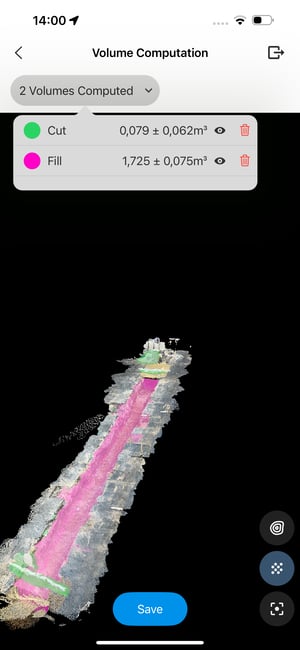
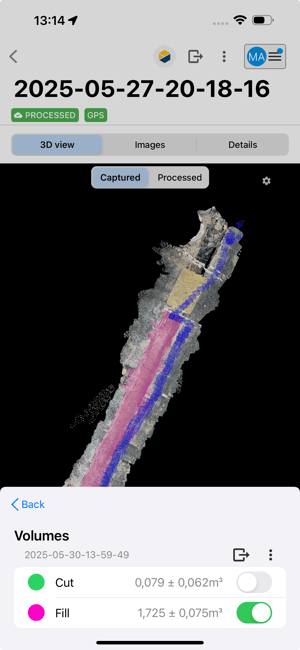
Once the computation is complete, the values of the volume(s) can be found on the dropdown list.
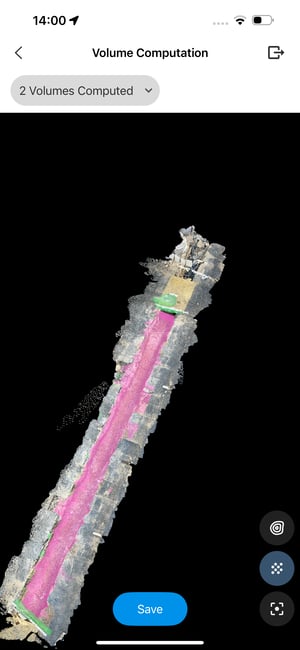
ヒント: 二 種類 の 音量 できる なれ 見つかった: その カット 音量 代表する その 材料 に なれ 削除れさました、 表示 で 緑 (例 の 1 在庫の山)、 そして その 埋める 音量 代表する 材料 に なれ 追加した、 表示 で 紫 (例 の 1 穴)。
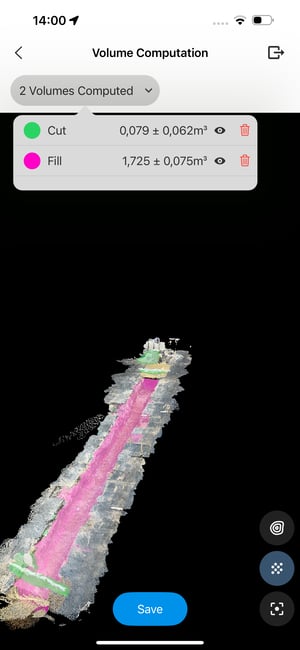
Volume(s) can be deleted with the trash icon
Mesh volume is displayed on the point cloud.
ヒント: ためのに れ改善さた 視覚化 の その 計算たされ 音量、 障害者 その ポイント 雲 よるに 選択する その メッシュ アイコン。-png.png?width=29&height=29&name=FAB%20(6)-png.png) 。
。
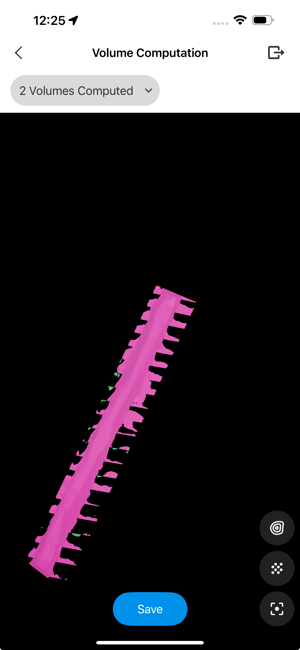
の上 それぞれ 音量、 1つ 不確実性 は 計算たされ そして 表示。
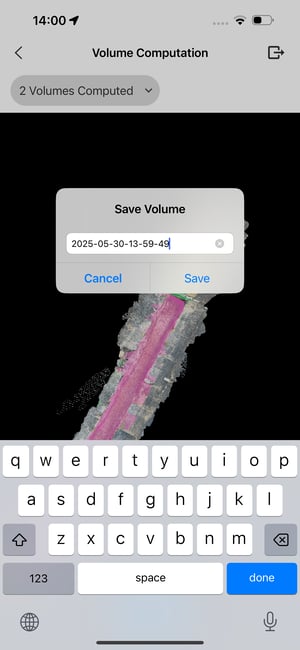
輸出 その 結果 で 1 PDF 報告 または .csv ファイル よるに クリック 保存。
Select where to store the file.
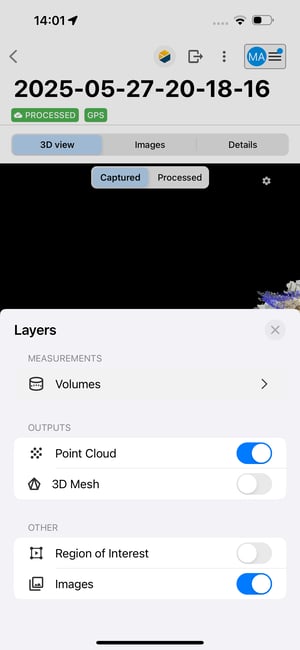
Once the volume is computed, a layer containing the volume measurements will be generated and the values will be displayed. This layer can be toggled on or off as needed.
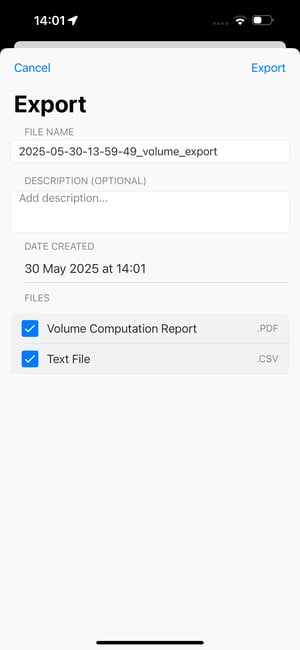
The volume measurements can be exported as a PDF or CSV file by selecting the export icon .
.
Volume uncertainty
音量 測定値 は 報告された と 1つ 不確実性 それ できる なれ 読む として 計算たされ 音量 +/- 不確実性。 これ 手段 それ その 音量 は 推定 に 嘘 で その [ボリューム確実性不、 量]+不確実性 インターバル と 1 自信 の について 68%。 ためのに 自信 の 95% そして 99%、 その 推定 間隔 は それぞれ [ボリューム-2*不確実性、 体積+2*不確実性] そして [ボリューム-3*不確実性、 体積+3*不確実性。]
The uncertainty estimation is based on a theoretical model, which accounts for different sources of uncertainty, such as the point cloud noise, completeness and density. The model does not take scale errors (which can be prevented using an RTK receiver) or errors in the base surface into account. An extensive validation of the theoretical model has been carried out by running experiments on various types of objects.
注記: ためのに もっと 情報 訪問 その 音量 計算 道具 満杯 記事
Volume Confidence with Uncertainty Volume Mesh
Understanding the Uncertainty Volume Mesh
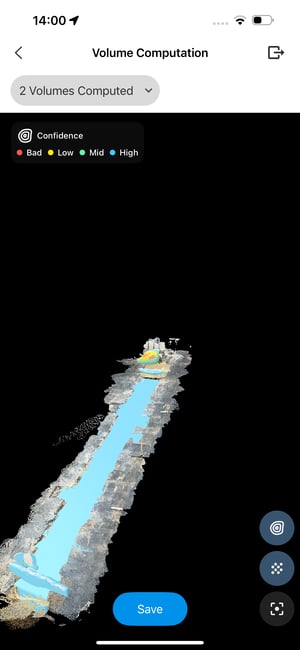
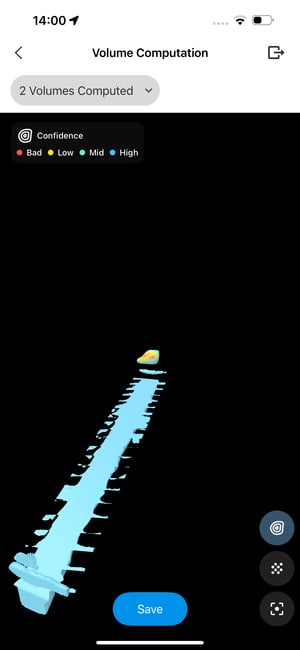
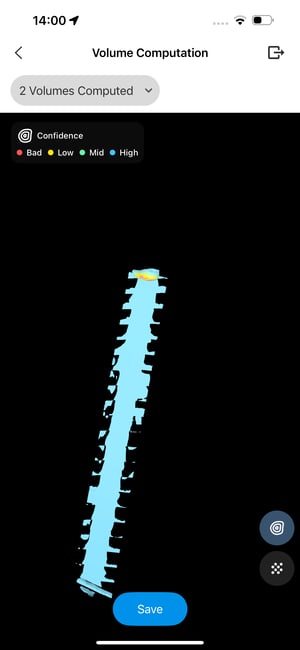
その 不確実性 音量 メッシュ 提供する 1 ビジュアル 代表 の その 自信 レベル ためのに それぞれ ポイント で その 計算たされ 3D 音量。 これら 自信 レベル 示す その 信頼性 の その 音量 データ、 手助けする ユーザー 評価する その さ正確 の その 測定値。 自信 は 表現した として 1 価値 間 0 そして 1:
- 1 (高い 自信): 非常に ある信頼性の データ。
- 0 (低い 自信): データ それ 5月 足らない 正確さ。
その 自信 価値 は 視覚的に 代表 使用 1 色分け 伝説、 どれの 許可する ためのに 素早い 識別 の エリア と 変化する レベル の 確実性。
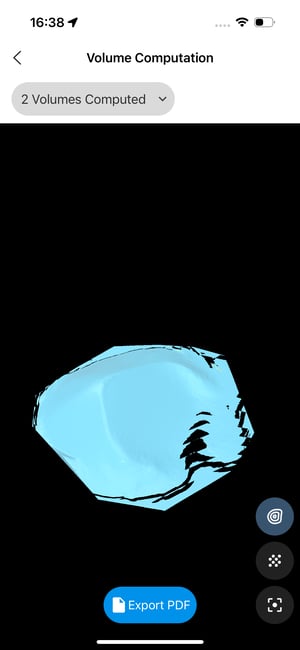
Color-Coded Legend for Confidence Levels
The uncertainty mesh uses colors to display the confidence levels:
 赤: 最低 自信 値、 代表する エリア と 重要な 不確実性。
 黄色: 何か 低い 自信、 示唆する 適度 信頼性。
 緑: 適度 自信、 表示中 許容できる データ 品質。
 青: 最高 自信 値、 マーキング エリア の 素晴らしい データ 品質。
PDF Report - Generation
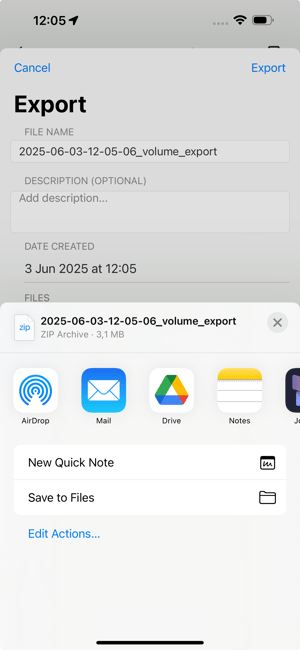
Export the results as a PDF report
Editable report information:
-
File name: The default name can be modified or replaced with a custom name.
-
Description (optional): A description can be added prior to exporting the report.
-
Date created: Fixed value of the creation of the report
プレスエクスポート
Select the location of the file
Back to the captured point cloud view
PDF Report - Details
PDF Report Contents
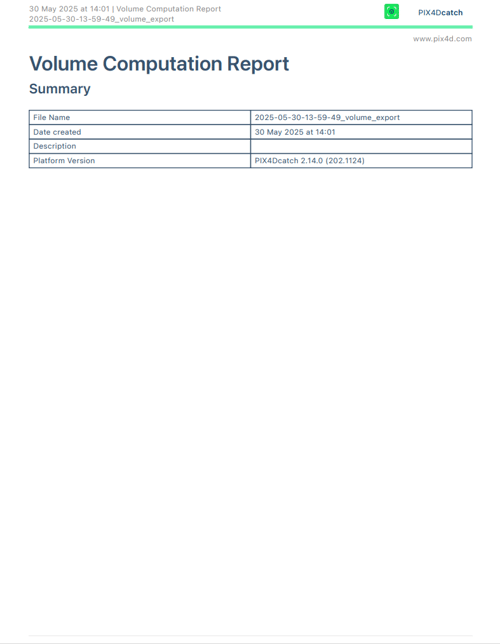
The first page of the PDF report includes the following information:
-
File name.
-
Date created.
-
Description.
-
Version of the PIX4Dcatch application used for computation.
This is followed by one or two additional pages, depending on the number of volumes computed.
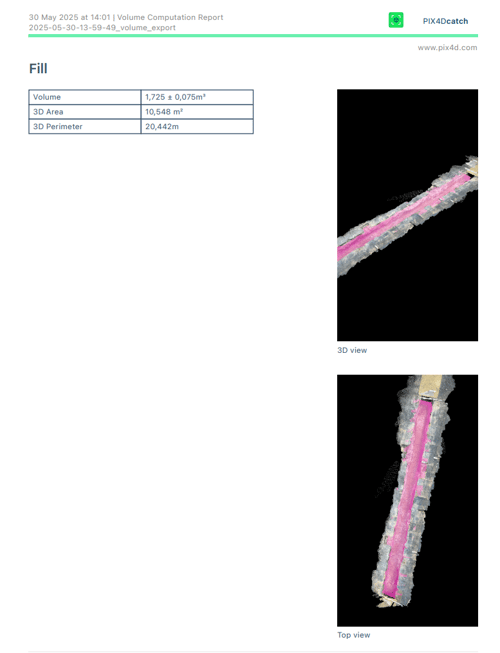
For each volume type (cut and/or fill volume):
-
Computed volume value with associated uncertainty.
-
3D area value, including the 3D coordinates of the points defining the base.
-
3D perimeter value, including the 3D coordinates of the points defining the base.
-
A 3D view of the volume.
-
A top-view of the volume.
Best practices for Accurate Volume Measurement
Capture the full dimensions of your object
-
Ensure the entire object is captured, including both the top and bottom surfaces, to calculate the correct volume.
-
Perform a closed-loop capture to improve spatial consistency.
-
Remove any unwanted surrounding objects before capture, if possible.
Obtain an accurate 3D model
- A precise point cloud is essential for reliable volume computation.
- 使用 オートタグ に する強化 その 品質 の その 3D 再建。
- に 改善する 絶対 正確さ、 特に で 屋外 環境、 使用 RTK ローバー あるが互換性 と PIX4Dcatch。
Precisely define the base of the volume
-
Use multiple perspectives when drawing the base polygon.
-
Add sufficient points to ensure the base accurately matches the object's footprint.
-
Remove any point that appears to be incorrectly placed.